✦ Overview
Chase AI delivers a comprehensive roadmap of 35 Claude Code concepts organized in a sliding scale from absolute essentials to power-user territory, specifically designed for people without a technical background. The video covers four sections: (1) things you MUST know immediately, (2) core building blocks for your first project, (3) intermediate concepts for leveling up, and (4) advanced power-user tools you should know exist but don't need to implement right away. By the end, you have a clear learning path from "what is a terminal?" to orchestration frameworks, scheduled tasks, and Ultra Plan.
1 Section 1 — The Essentials (Concepts 1–7)
The absolute must-knows before you can do anything with Claude Code.
1. Claude.ai vs. Claude Code
Same brain (e.g., Opus 4.6), but Claude Code has a body — it can write code, access emails, interact with your computer. The chat app can only talk; Claude Code can do.
2. Installing Claude Code
Single line of code from the Claude Code documentation. Choose your command based on your OS (macOS, Linux, Windows/PowerShell).
3. The Terminal
The black screen with text. It's where Claude Code lives. On Mac, use the built-in Terminal; on Windows, use PowerShell or Windows Terminal. "If you don't know what the terminal is, just know it's the thing that Claude Code operates inside of."
4. Navigation Commands
cd— change directory (move into folders)ls— list what's inside a folderpwd— print working directory (where you currently are)mkdir— create a new folder
5. What Is a Project?
A folder on your computer containing all related files. You navigate into it with cd, then launch Claude Code from there. Claude Code's scope is everything inside that folder.
6. Starting Claude Code
Navigate to your project folder, type claude, and you're in. The first prompt should be what you want to build.
7. CLAUDE.md
An auto-generated file that acts as permanent memory for your project. Whatever you put in here, Claude Code references every single time. "Less is more" — only add rules that apply to virtually every prompt.
2 Section 2 — Building Blocks (Concepts 8–19)
The core concepts you need once you have your first project running.
8. Context Window
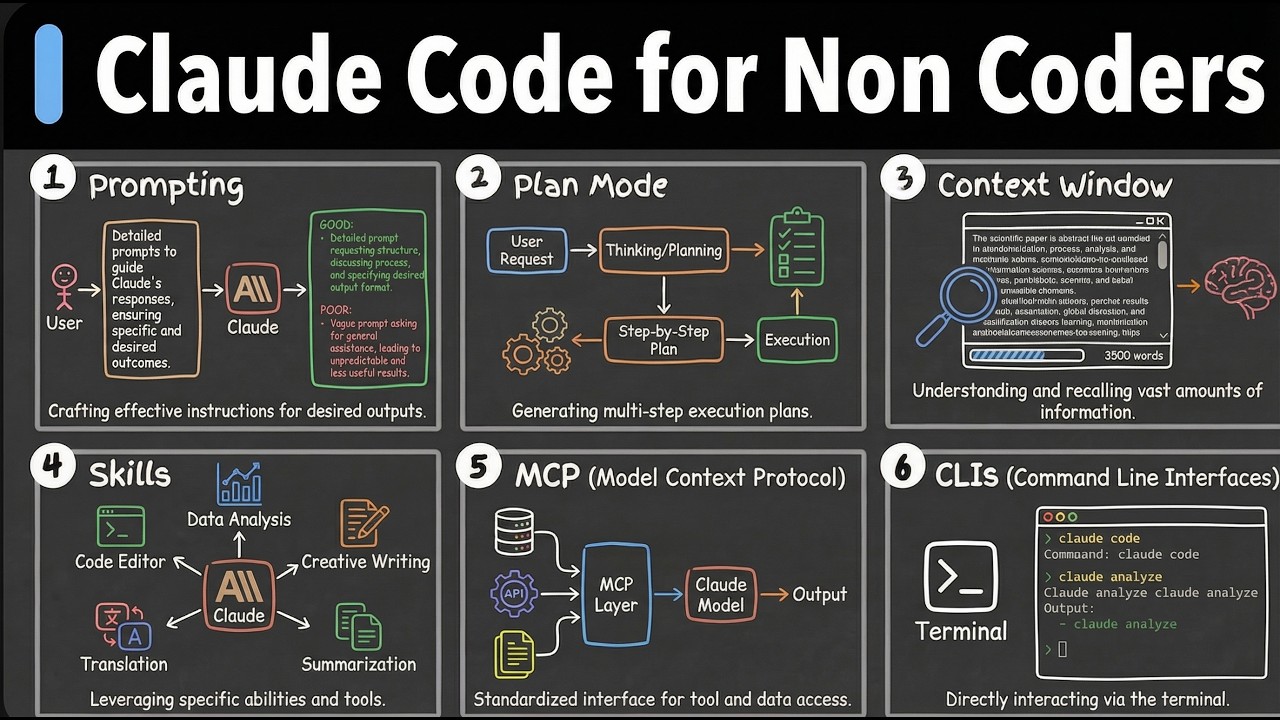
Check with /context. It's the "short-term memory" of your session. Once it fills up (~200K tokens), Claude Code starts forgetting earlier parts of the conversation. When it gets high, start a new session.
9. Cost Management
Use /cost to see how much you've spent. Set up notifications and hard limits through the Anthropic console to avoid surprises.
10. Thinking Models (Extended Thinking)
Toggle with /think. Makes Claude Code think longer before responding — useful for complex tasks, architecture decisions. Don't use it for simple one-liners.
11. Model Selection
Use /model to switch. Opus for complex tasks, Sonnet for everyday work. "You don't need a 200 IQ brain to draft an email."
12. Conversation Compacting
Use /compact when context window gets full. It summarizes the conversation and frees up space, but you lose granular details.
13. Plan Mode
Shift+Tab activates Plan Mode — Claude Code creates a plan first without executing. "Think before you do." Essential for complex tasks.
14. Screenshots & Images
Paste screenshots directly into Claude Code. Incredibly useful for design work — "make it look like this."
15. Permissions
Claude Code asks permission before editing files, running commands, etc. You can use --dangerously-skip-permissions to auto-approve everything, but understand the risks.
16. Yes-Man Mode
Claude Code tends to agree with everything. Prefix prompts with "be brutally honest" or "tell me what's wrong" to get real feedback.
17. Prompt Engineering Basics
- Be specific — don't say "make it look nice," say "use Tailwind CSS with rounded corners and a blue gradient header"
- Use examples — "make it look like [screenshot]" or "follow this style: [URL]"
- Break it down — one thing at a time, not "build me an entire SaaS"
18. When Things Go Wrong
/undo reverts the last change. If everything is broken, check Git history. Don't panic — mistakes are recoverable.
19. CLI Tools (Command-Line Interfaces)
Tools you install that extend what Claude Code can do. Examples: gh (GitHub CLI), supabase CLI, vercel CLI. Claude Code can use these to deploy, manage databases, etc.
3 Section 3 — Intermediate (Concepts 20–29)
Leveling up — skills, MCP, subagents, code review, and deployment.
20. Skills
Reusable instruction sets for Claude Code. Install from URLs, invoke with /skill-name or just mention the topic. Skills can be user-level (available everywhere) or project-level (specific to one folder).
21. Skill Creator Skill
A meta-skill that helps Claude Code create custom skills for you. Great for encoding your own workflows.
22. MCP (Model Context Protocol)
A standardized way for Claude Code to connect to external data sources and services. Like giving Claude Code a phone to call APIs, databases, tools. Configure via /mcp.
23. Subagents
Claude Code can spawn sub-agents for specific tasks. Like a manager delegating work to specialists. Useful for parallelizing tasks.
24. Claude Code Desktop App
VS Code-like interface for people who don't want the raw terminal. Same Claude Code under the hood, but with a GUI, file explorer, and visual diff.
25. Git Basics
Version control — save snapshots of your project. Key commands: git init, git add, git commit. Claude Code can do all of this for you. "Think of it as save points in a video game."
26. GitHub
Cloud storage for your Git repos. Claude Code can push to GitHub, create repos, manage issues. Essential for collaboration and backup.
27. Deployment
Getting your project live on the internet. Tools like Vercel, Netlify, Cloudflare. Claude Code can handle the entire deployment process.
28. Custom Slash Commands
Create your own /commands that execute specific workflows. Saves time on repetitive tasks.
29. Code Review
Two approaches: (1) open a second Claude Code session and tell it to be adversarial, or (2) use the Codex plugin for a completely different AI's perspective. /codex adversarial-review gets OpenAI's Codex to review your Claude-generated code.
4 Section 4 — Power User (Concepts 30–35)
Advanced concepts you should know exist, not necessarily implement on day one.
30. Multi-File Projects & Architecture
As projects grow, understanding file structure becomes critical. Let Claude Code scaffold the architecture, but learn to read it.
31. Git Worktrees
Run multiple branches simultaneously in different folders. Lets you have two Claude Code sessions working on different features without conflicts. "A more advanced Git concept — don't jump into this right away."
32. Orchestration Frameworks
GitHub repos like GSD (Get Shit Done), BMAD, Superpowers — they add an orchestration layer around Claude Code, changing how it plans and executes. Chase's take: "Less is usually more. Don't use these for the sake of them. A lot of the cool things from GSD have begun to be seen in base-level Claude Code."
33. Triggers & Scheduled Tasks
/loop— run something on an interval (session-based, max 7 days, requires terminal open)- Desktop app scheduled tasks — remote tasks (run in cloud) or local tasks (requires computer on)
- Windows Task Scheduler — Claude Code can write scripts that your OS runs independently
34. Ultra Plan
A cloud-based super planning mode (/ultraplan). Likely uses multiple agents under the hood. Provides a nicer interface for reviewing and commenting on plans. Approve and implement in a fresh context window.
35. Remote Control & Finding New Tools
- Remote Control — control Claude Code from your phone via the Claude mobile app. Streams your terminal to your phone. Requires an active session.
- GitHub Trending — browse trending repos to find new Claude Code tools. Have Claude Code do this daily and report back.
★ Key Takeaways
🔑 Key Takeaways
- Claude Code = Claude with hands — same brain as the chat app, but it can actually do things: write code, access files, interact with your computer.
- The terminal is your workspace — learn
cd,ls,pwd,mkdir. Everything else builds on navigation. - CLAUDE.md is project memory — auto-generated, referenced on every prompt. Keep it lean — only universal rules that apply to every interaction.
- Context window = short-term memory — check with
/context. When it gets high, start a new session. Don't let Claude Code become "someone who's been up for 48 hours." - Plan Mode before complex tasks — Shift+Tab. Think before doing. Essential for anything more complex than a simple change.
- Skills are reusable instruction sets — install from URLs, user-level or project-level. The Skill Creator meta-skill helps you build your own.
- MCP connects Claude Code to external services — databases, APIs, tools. Standardized protocol — like giving Claude Code a phone.
- Adversarial code review is critical — use a second Claude Code session or the Codex plugin for an independent review. Don't trust the same brain that wrote the code.
- Orchestration frameworks: less is more — GSD, BMAD, Superpowers add value, but base Claude Code now includes many of their best features. Don't use them for the sake of it.
- Scheduled tasks have caveats —
/looprequires terminal open (max 7 days). Desktop app scheduled tasks need the computer on. Only Windows Task Scheduler runs truly independently. - Ultra Plan uses cloud agents —
/ultraplanfor complex planning with a nicer UI, commenting, and fresh context window on approval. - GitHub Trending = staying current — browse daily for new Claude Code tools. Have Claude Code automate this for you every morning.