Introduction
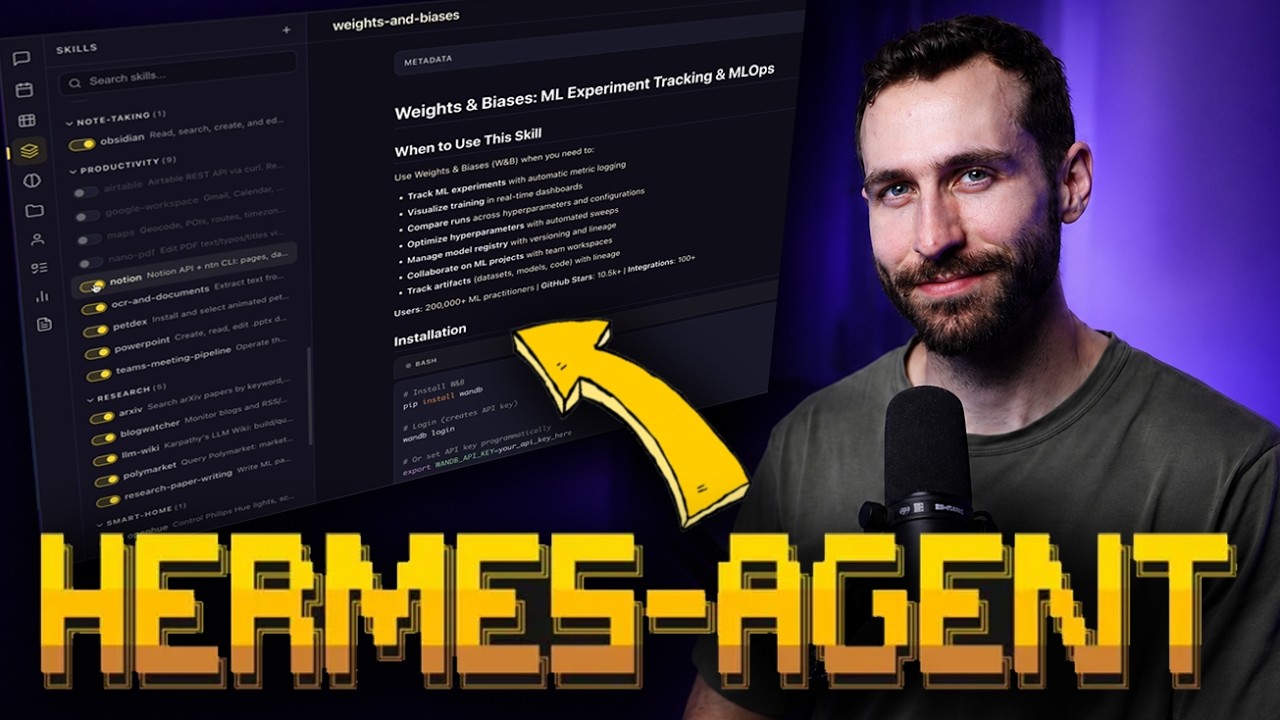
ZazenCodes kicks off with the vision: Hermes Agent is already a powerful AI assistant from the terminal, but two key upgrades take it to the next level — a browser-based Web UI for visual interaction and Honcho AI Memory for persistent, structured context that goes far beyond flat files.
These two additions transform Hermes from a developer's CLI tool into a production-ready personal AI assistant accessible from any device, with memory that persists intelligently across sessions.
Hermes Upgrade Plan
The roadmap is intentionally incremental — each upgrade builds on the previous one, and you can stop at any stage:
- Web UI — Install the browser-based frontend for Hermes, giving you a chat interface, session management, and visual tool output.
- Honcho Memory — Add an AI memory layer that stores facts, preferences, and context in a structured database rather than Hermes's built-in
memory.mdflat files. - Remote Access — Configure secure access so you can use Hermes from your phone, tablet, or any browser anywhere.
- Docker Deployment — Bundle everything (Hermes + Web UI + Honcho) into a Docker Compose stack on Hostinger for one-click deployment.
Hermes Web UI Installation
Step-by-step walkthrough of getting the Web UI running locally before deploying remotely:
Installation Steps
- Clone the Web UI repository — the frontend is a separate project that connects to the Hermes backend.
- Install dependencies — Node.js packages for the frontend framework.
- Configure environment variables — set the Hermes backend URL, port, and authentication settings.
- Set up the backend connection — ensure the Web UI can communicate with your running Hermes Agent instance.
- Start the dev server — run locally first to verify everything works before deploying.
Key Configuration
Environment variables control the connection between the Web UI frontend and the Hermes backend. You'll configure the API endpoint, any auth tokens, and the port the UI runs on. The Web UI acts as a thin client — all the intelligence stays in the Hermes Agent backend.
Explore the Hermes Web UI
A full tour of what the Web UI provides over the standard CLI experience:
Core Features
- Chat Interface — Rich messaging with markdown rendering, code highlighting, and inline media.
- Session Management — Browse, search, and resume past conversations visually. No more scrolling through terminal history.
- File Browsing — Navigate and view files that Hermes creates or modifies, right in the browser.
- Tool Execution Visualization — See what tools Hermes is calling, their inputs, and outputs — rendered cleanly instead of raw JSON in a terminal.
- Settings Panel — Adjust Hermes configuration without editing YAML files by hand.
Why Web UI Matters
- Shareable conversations — send a link to a session instead of pasting terminal output.
- Visual tool output — images, diagrams, and charts rendered inline.
- Mobile-friendly — responsive design works on phones and tablets.
- Lower barrier — non-technical team members can interact with Hermes without touching a terminal.
Honcho Memory Configuration
Honcho is an AI memory layer that provides persistent, structured memory for agents. It's a fundamentally different approach from Hermes's built-in memory.md system.
How Honcho Differs
While memory.md stores notes as flat markdown files that the agent reads at session start, Honcho maintains a structured database of facts, preferences, and contextual information. The AI can query specific memories, update them, and the system decides what's worth remembering based on conversation patterns.
Configuration Steps
- Get API keys — set up credentials for the Honcho service.
- Connection settings — configure the endpoint URL and authentication.
- Memory schema — define what categories of information to track (preferences, facts, project context, etc.).
- Integration with Hermes — wire Honcho into the Hermes Agent configuration so it's consulted on every session.
Explore Your Honcho Memory Model
Diving deep into how Honcho works in practice — what gets stored, how it's retrieved, and why the AI decides certain facts are worth remembering:
How Facts Are Managed
- Automatic extraction — Honcho identifies important facts from conversations (user preferences, project details, technical decisions) and stores them without explicit commands.
- Structured storage — facts are categorized, tagged, and timestamped rather than dumped into a single file.
- Smart retrieval — when a new session starts, Honcho retrieves relevant memories based on the conversation context, not everything at once.
- Updates over overwrites — if a fact changes (e.g., you switch to a new tech stack), Honcho updates the record rather than creating duplicates.
Memory Queries & Retrieval
The memory model uses semantic search — when you start talking about Docker, Honcho surfaces your Docker-related preferences, past deployment configurations, and known issues. This contextual retrieval means Hermes doesn't need the full history; it gets precisely what's relevant.
Set Up Remote Web UI Access
Making your Hermes Web UI accessible from anywhere, securely:
Access Methods
- Port forwarding — expose the Web UI port through your router (simplest for home setups).
- Reverse proxy — use Nginx or Caddy to route traffic, add SSL, and handle domains.
- SSL/TLS — critical for security; Let's Encrypt provides free certificates via Certbot.
Security Considerations
Remote access to an AI agent with tool execution capabilities requires careful security. ZazenCodes covers authentication tokens, HTTPS enforcement, and limiting which tools are available through the Web UI. The goal: access from your phone while keeping the attack surface minimal.
Integrate Web UI with Hostinger Docker
The final stage: deploying the complete stack on Hostinger using Docker for a fully managed, always-on Hermes Agent:
Docker Compose Stack
Three services in one docker-compose.yml:
- Hermes Agent — the core AI backend with all tools and configurations.
- Web UI — the browser-based frontend connected to the Hermes backend.
- Honcho — the AI memory database service for persistent context.
Deployment Details
- Environment variables — configured in
.envfiles, not hardcoded in compose files. - Persistent storage — Docker volumes for Hermes config, Honcho database, and session data.
- Hostinger one-click deploy — leveraging Hostinger's Docker hosting for simplified deployment.
- Final testing — verifying the full stack works end-to-end: chat → tool execution → memory storage → session persistence.
Architecture & Diagrams
Feature Comparisons
CLI vs Web UI
| Feature | CLI (Terminal) | Web UI (Browser) |
|---|---|---|
| Chat interface | Plain text in terminal | Rich markdown, code highlighting, inline media |
| Session management | File-based, manual navigation | Visual browser with search & resume |
| Tool output | Raw text / JSON | Formatted, collapsible, visual |
| File browsing | ✗ Use shell commands | ✓ Built-in file viewer |
| Mobile access | ✗ Needs SSH client | ✓ Responsive design |
| Shareable sessions | ✗ Copy-paste terminal output | ✓ Link sharing |
| Setup complexity | Minimal — already installed | Requires frontend install + config |
| Power user features | ✓ Full shell, scripting, pipes | Limited to UI capabilities |
| Non-technical users | ✗ Terminal barrier | ✓ Approachable interface |
memory.md vs Honcho AI Memory
| Aspect | memory.md (Built-in) | Honcho AI Memory |
|---|---|---|
| Storage format | Flat markdown files | Structured database |
| How facts are saved | Agent writes to file manually | Automatic extraction from conversation |
| Retrieval | Entire file loaded at session start | Semantic search — relevant facts only |
| Updates | Append or manual edit | Smart update — replaces outdated facts |
| Scalability | File gets large → token waste | Scales with database, queries stay fast |
| Categorization | Manual headers/sections | Automatic tagging & categorization |
| Setup | ✓ Zero config, works out of box | Requires API keys & configuration |
| Offline | ✓ Fully local | Depends on Honcho service |
| Intelligence | Static — agent decides what to write | Dynamic — AI decides what's worth remembering |
Key Takeaways
- Hermes Agent can be upgraded with a browser-based Web UI for visual chat, session management, and mobile access.
- Honcho adds structured AI memory beyond Hermes's built-in memory.md — facts stored in a database, not flat files.
- The Web UI provides shareable conversations, visual tool execution output, and file browsing capabilities.
- Honcho memory lets the AI decide what's worth remembering with structured storage and retrieval patterns.
- Remote access setup enables using your Hermes Agent from any device with a browser.
- Full Docker deployment on Hostinger bundles Hermes + Web UI + Honcho in a single stack.
- The upgrade path is incremental: Web UI first, then memory, then remote access, then Docker deployment.
- A GitHub guide provides all configuration files and step-by-step instructions for the complete setup.