Superfile: The Terminal File Manager That Makes You Ditch Finder
1.What Superfile Is0:00
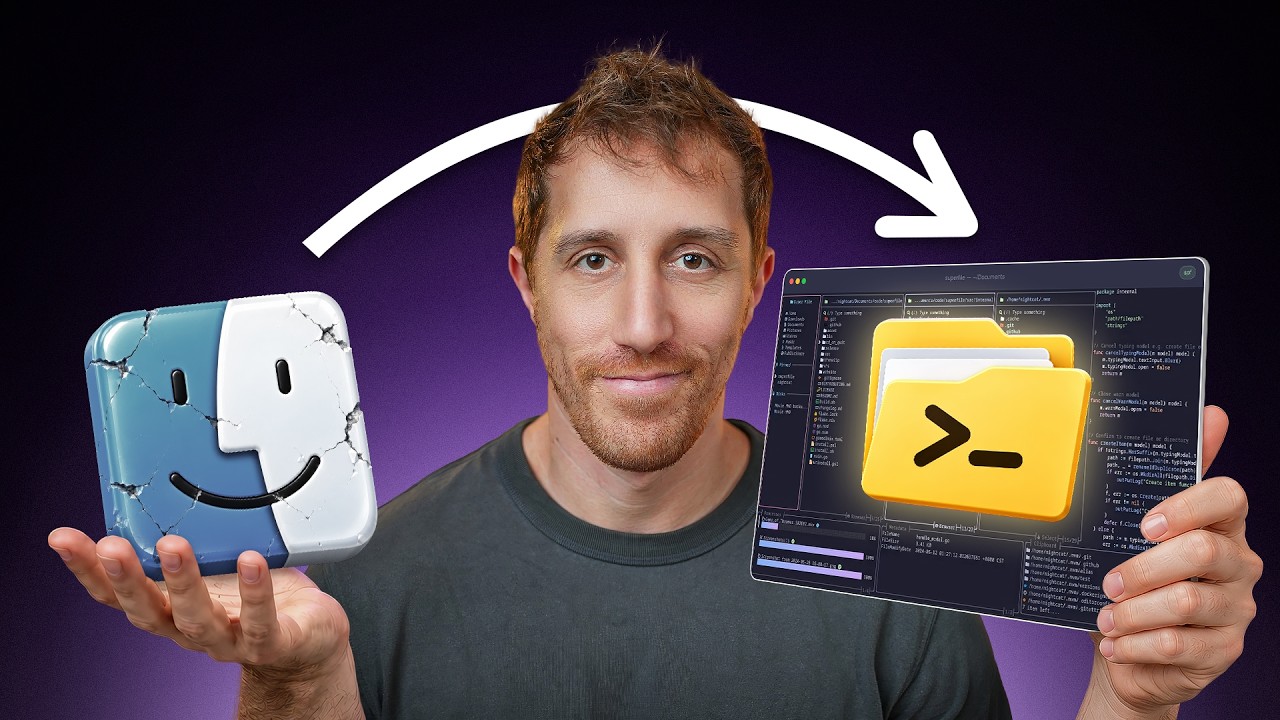
Superfile (github.com/yorukot/superfile) is a terminal file manager that DevOps Toolbox describes as "the nicest I've ever used" — and the pitch is simple: it's the thing that finally gets you to stop reaching for Finder or Explorer. The frame he opens with: we all prefer environments that look good, perform, and feel fun to operate, and Superfile is built for all three.
Technically it's a Go project on the Bubble Tea framework (Charm's TUI library), started by a CS student from Taiwan — "with a knack for open-source CLI and TUI." It sits at ~23K stars, MIT-licensed. Install is a one-liner via curl.
2.The Layout: Panes, Preview, Metadata1:12
Open it (spf) and the layout is immediately familiar: a favorites sidebar like Finder's, a pin list, mounted disks, and a stack of panes at the bottom. The hero is the center path pane with directories and files, flanked by a preview pane that lists files or reads them directly — including pixelated image previews and syntax-highlighted code "like reading it in your IDE."
Every file type gets a Nerd Font icon (git, markdown, docker, bash, Go), and a metadata pane below shows everything you'd normally run ls -lat for. Directories get recognition too — the video jokes that node_modules gets "its icon indicating the heaviest physical object known to mankind."
Shift-L/Shift-H hop between panels, Tab moves focus, and / searches. A ? help menu lists every hotkey.3.SPF Mode: Split, Shell, and Vim Motions3:13
Hit > and you get the Superfile prompt (SPF mode) — a command line inside the app. From here you can split to create a second browser pane (useful for comparing two file lists side by side), or cd to jump anywhere. The detail the reviewer singles out as "really thought through": type : and you get a full shell right there inside Superfile — no backgrounding, no opening a separate tmux window.
Panels are first-class: M focuses the metadata pane so you can scroll longer output, and you can stack multiple browser panes when you want two paths on screen at once.
4.File Ops: Copy, Cut, Delete, Multi-select4:07
File operations are where Superfile earns its keep. V enters visual mode for multi-select (arrow keys, not space), then Ctrl-C copies to a clipboard pane that shows exactly what's queued, Ctrl-V pastes, and Ctrl-X cuts and moves. Ctrl-D deletes to the trash, and / filters the file list. Background operations (copies, moves) show as a process list at the bottom.
The comparison he draws: Superfile is what Oil.nvim did for Neovim file browsing, but "better, and in the most appropriate place for file control — the terminal." The one honest gap: no undo. "At least not one that I could find." If you move the wrong file, you move it back manually.
cd-on-quit (landing in the directory you quit from) isn't built in; it's a standalone script you have to copy into your shell config. "Not very smooth, but it works."5.Config + Plugins: Zoxide, Editor, Pins7:05
Configuration is a TOML file with the visuals ready to go. Set your editor and E opens a file in it directly. There's also a (short) plugin system — and the one that matters is zoxide integration: enable zoxide: true and z/z gives you instant directory jumping ("zoxide is probably in my top three CLIs of all time").
Pinning is a small but useful detail: Shift-P pins the current path to your favorites, S opens the Superfile menu to browse pins, and Shift-B removes one. There's even a pl easter egg that renders a rainbow palette.
| Key | Action |
|---|---|
spf | Launch Superfile |
> / : | SPF prompt / inline shell |
Shift-L/H | Next / previous panel |
V + arrows | Multi-select |
Ctrl-C/V/X | Copy / paste / cut |
Ctrl-D | Delete to trash |
Shift-P/Shift-B | Pin / unpin path |
E | Open file in configured editor |
z | Zoxide jump (with plugin enabled) |
6.The Verdict9:11
The reviewer doesn't hedge: Superfile "stayed true to everything promised — sleek, easy to use, and fancy," and he's kept it as a staple of his workflow "for quite a while now" despite good alternatives. The zoxide integration is the cherry — "it may very well be the most important tool I have and probably the first I install on any system."
Key Takeaways
- Superfile is a Go + Bubble Tea terminal file manager, MIT, ~23K stars, by a CS student from Taiwan.
- The layout gives you preview, metadata, and file list in one screen — with Nerd Font icons, syntax highlighting, and image previews.
>opens SPF mode: split panes,cd, or drop to an inline shell with:.- File ops are Vim-flavored: visual-mode multi-select, Ctrl-C/V/X for copy/paste/cut, Ctrl-D to trash.
- The honest gaps: no undo, and cd-on-quit is a separate script rather than built in.
- Zoxide integration is the killer feature —
zjumps to any directory instantly. - It's the terminal-native successor to Oil.nvim's file browsing, and a real Finder replacement for keyboard-first workflows.
Timestamp Index
- 0:00 Intro — the terminal as a nice place to work
- 1:12 Install + first open, the layout
- 3:13 SPF mode — split, cd, inline shell
- 4:07 Sorting, multi-select, copy/paste
- 6:06 Filter, delete to trash, cut/move, no undo
- 7:05 Config, editor, zoxide plugin, pins
- 9:11 Verdict — a Finder replacement for the terminal