📌 How this was checked
This video is from April 2024 — over two years old at the time of writing. For most technology that would mean checking what has changed. For Vim it means almost nothing has: the commands below are decades old and the video's age is not a defect.
But "probably still true" is not verification. Every command in this article was run against Neovim 0.12.1 and cross-read against :help change.txt and :help provider.txt from that installation, using headless sessions with -u NONE so no personal configuration could alter the result.
Twenty-eight behaved exactly as described. Two did not, and they are covered in §7 and §9.
The video's real strength is its ordering, which is worth naming because most command lists have none: search → change → repeat → make it repeatable → automate the repetition. Each section makes the next one useful. That is a curriculum, not a list, and it is why this one has 292,990 views while equivalent lists do not.
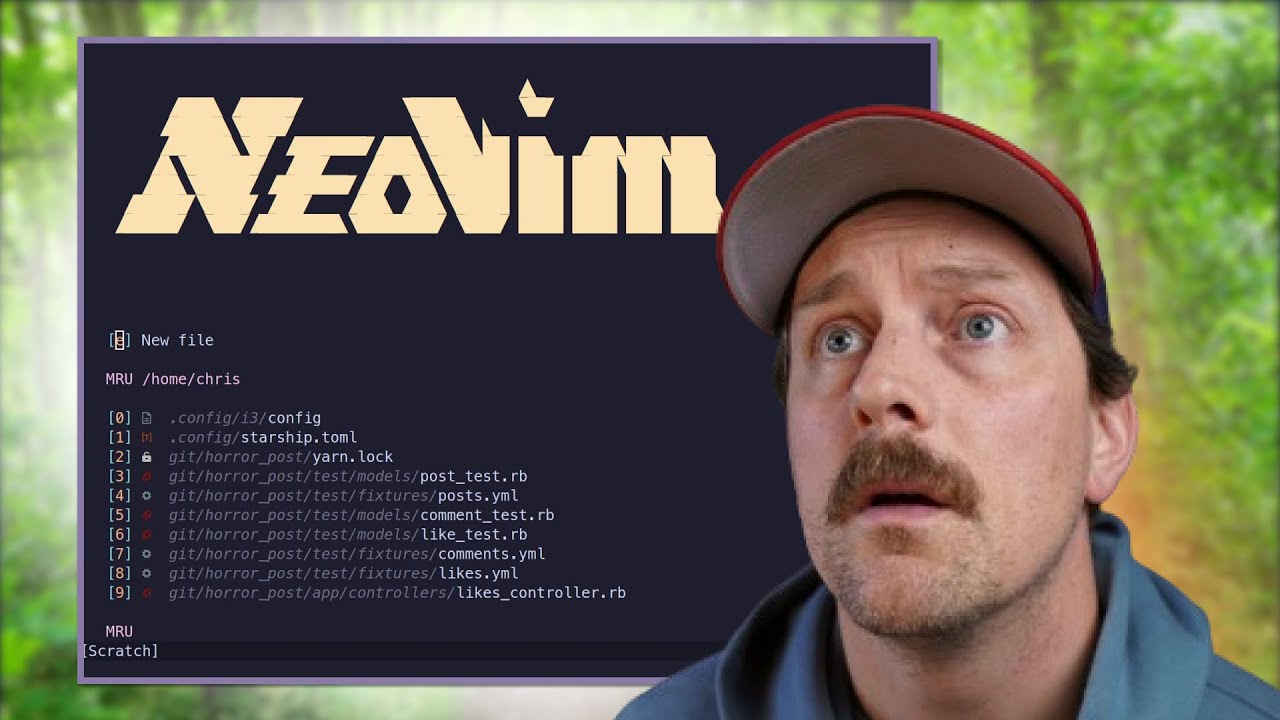
🚪 Opening and quitting 0:14
| Command | What it does | Why you need it |
|---|
| nvim <file> | Opens the file in Neovim | The entry point. vim <file> for classic Vim |
| : | Opens the command line (Ex mode) | Every colon command starts here — it is a mode, not a prefix |
| :q | Quit | The single most-searched Vim question on the internet |
"To quit Neovim it is colon-q. Colon opens the command prompt and q stands for quit. Hit enter and you're out. I just saved you a lot of time, you're welcome."
Worth adding, because the video does not: :q refuses when the buffer has unsaved changes. The variants you will actually need within your first hour:
| :w | Write (save) without quitting |
| :wq | Write, then quit |
| :q! | Quit, discarding unsaved changes — the ! means "I mean it" |
| :qa! | Quit all windows/buffers, discarding changes |
Teaching
:q without
:q! leaves the beginner stuck on the exact error that made them search in the first place.
🧭 Movement — hjkl 0:44
| Key | Direction | Mnemonic |
|---|
| h | Left | Leftmost of the four keys |
| j | Down | The letter has a descender — it hangs down |
| k | Up | The letter has an ascender |
| l | Right | Rightmost of the four |
Why this exists at all — the video treats it as assumed knowledge, which is fair, but the reason is worth one line: the ADM-3A terminal Bill Joy used to write vi had the arrows printed on those keys. It is not ergonomic theory; it is hardware archaeology that turned out to keep your hand on the home row.
His mnemonic — "left, down, up, right" = ladder — is as good as any.
🔍 Search: *, n, N 1:04
| Command | What it does | Why you need it |
|---|
| * | Searches forward for the word currently under the cursor | No typing. Put the cursor on a variable, press *, and you are navigating its every use |
| n | Jump to the next match | Forward through the results |
| N | Jump to the previous match | Backward — capital reverses direction, a pattern that recurs throughout Vim |
Verified. * searches for the word under the cursor with word boundaries applied, so searching post will not match inside composting. Neovim's help confirms the whole-word behaviour.
Three the video skips that belong in the same breath:
| # | Like *, but searches backward for the word under the cursor |
| g* | Same as * without word boundaries — will match inside longer words |
| /pattern | The general forward search. ?pattern searches backward |
g* in particular saves you the moment you want
user to also match
username.
✏️ Change, text objects, dot 1:28
This is the section that teaches Vim's actual grammar rather than a list of keystrokes.
| Command | What it does | Why you need it |
|---|
| c | The change operator — deletes something, then enters insert mode | An operator is incomplete on its own; it waits for a target |
| iw | The text object "inner word" — the word under the cursor, excluding surrounding whitespace | The target. Cursor can be anywhere in the word; you do not need to reach its start |
| ciw | Change inner word: delete the word, start typing the replacement | The single highest-value keystroke in this video |
| . | Repeat the last change | Turns one edit into a reusable action |
"All I have to do is hit n to go to my next match for that previous word, and to replay what I just did previously I can just hit dot."
The * → ciw → n → . loop is the real lesson of the video, and it deserves naming explicitly because it generalises:
find, change once, jump, repeat. You review each occurrence as you go, which is exactly what a blind global substitution denies you.
The grammar underneath is
operator + text object, and once you have it, the vocabulary multiplies without memorisation:
| diw | Delete inner word (same target, different operator) |
| yiw | Yank inner word |
| ci" | Change everything inside the double quotes |
| ci( | Change everything inside the parentheses |
| caw | Change a word — a instead of i includes the trailing whitespace |
| cc | Change the whole line |
Four operators × a dozen text objects is roughly fifty commands you never had to learn individually.
🔁 Substitute: :%s 2:04
Broken into its parts, because the video reads it out as one string and the parts are independently useful:
| Piece | Meaning |
|---|
| : | Enter the command line |
| % | Range: the entire file. Omit it and you affect only the current line |
| s | The substitute command |
| /old/new/ | Pattern to find, then replacement. old is a regular expression |
| g | Flag: global — replace every occurrence on each line, not just the first |
| c | Flag: confirm — prompt before each replacement |
:%s/post/poops/g     " every occurrence in the file, no questions asked
:%s/post/poops/gc    " same, but ask about each one — y / n / a / q / l
The confirm flag is the one to internalise. The video demonstrates exactly why: it wanted to change post but not PostsController, and c is what let it skip that one. A bare /g on a real codebase is how you rename something you did not mean to rename.
A common point of confusion worth stating plainly: the % and the g do different jobs. % is which lines; g is how many times per line. Without g, only the first match on each line changes.
One correction, and it is the transcript's fault rather than the video's: local transcription rendered "the :s command" as "the said command" throughout. There is no said command in Vim. The command is :s, short for substitute.
📋 Visual mode, yank, paste 3:04
| Command | What it does | Why you need it |
|---|
| v | Enter visual mode — select text by moving | Lets you see the target before acting on it |
| viw | Visually select the inner word | Same text object as ciw, different operator — the grammar again |
| y | Yank (copy) the selection into a register | Vim's copy. It does not touch the system clipboard by default — see §9 |
| p | Paste after the cursor | P pastes before — capital reverses, as with n/N |
Why he prepends v rather than using yiw directly: visual mode gives you confirmation.
yiw yanks silently and you find out whether you got the right thing when you paste. For destructive or ambiguous targets, seeing the highlight first is worth the extra keystroke — and once you trust the text object, you drop the
v.
Two more visual modes complete the set:
| V | Visual line mode — select whole lines |
| Ctrl-v | Visual block mode — rectangular selection, for columns |
| yy | Yank the current line (also written Y) |
| dd | Delete the current line — and yes, it yanks it too |
🗄️ Registers — and the error 4:54
The concept is correct and important: Vim has dozens of named clipboards, and :reg shows them all.
| Command | What it does | Why you need it |
|---|
| :reg | List every register and its contents | The only way to see what you actually have copied |
| "3p | Paste from register 3 | The " prefix means "the next character names a register" |
| "7y | Yank into register 7 | Deliberate storage — park something where the next yank cannot clobber it |
| "7p | Paste from register 7 | Retrieve it later, whatever you copied in between |
The named-register commands verified exactly. Running "7yy in a clean Neovim session and then :registers 7 shows the yanked line sitting in register 7. Explicit registers work precisely as the video demonstrates.
But the explanation of how the numbered registers fill on their own is wrong. The video says:
"Typically it starts at zero and then increments by one for every action you do. So if I yanked one thing and then changed another thing, the previous thing I yanked should be in register zero. If I keep going from there it'll go to register one, register two, etc."
That describes a rolling history of yanks. It is not what Vim does. From :help change.txt, verbatim:
"Numbered register 0 contains the text from the most recent yank command… Numbered register 1 contains the text deleted by the most recent delete or change command… With each successive deletion or change, Vim shifts the previous contents of register 1 into register 2, 2 into 3, and so forth."
Confirmed by execution. Two headless Neovim sessions on an identical four-line file:
| Actions | "0 | "1 | "2 | "3 |
|---|
yy yy yy (three yanks) | charlie | — | — | — |
dd dd dd (three deletes) | charlie | charlie | bravo | alpha |
Three consecutive yanks leave registers 1–3 untouched. Only
"0 changes, and each yank overwrites the last. The 1–9 stack is a
delete history, not a yank history.
Why the distinction is practical, not pedantic. Believing the video's version, you would yank three things and expect to retrieve all three from
"0,
"1,
"2. Only the last survives — the first two are gone. The correct mental model is:
"0 — your most recent yank, safe from deletes"1–"9 — your last nine deletions, newest first"" — the unnamed register: whatever the last yank or delete produced. This is what a bare p pastes"a–"z — named registers you control. Uppercase "A appends instead of overwriting
"0p is the fix for Vim's most common frustration: yank a word, delete another word to make room, press
p, and get the deleted text back instead of what you copied.
p reads
"", which the delete overwrote.
"0p reads the yank.
Neovim 0.12 ships a documented recipe for the behaviour the video describes — a TextYankPost autocommand that shifts yanks through registers 1–9, listed under *yankring* in :help change.txt. Its existence is itself proof that the default does not work that way.
⭐ Special registers 6:20
| Command | What it does | Why you need it |
|---|
| "+y | Yank into the system clipboard register | Copy out of Vim into any other application |
| "+p | Paste from the system clipboard | The reverse direction |
| "%p | Paste the current file's name | % is read-only and always holds the open file's path |
| :let @+ = @% | Copy the filename into the clipboard register | Puts the path on your system clipboard to paste elsewhere |
Both verified. getreg("%") in a headless session on /tmp/vt3.txt returns vt3.txt. The :let @x = @y form is the general way to copy one register into another — @ is how registers are addressed in expressions, where " is how they are addressed in normal mode.
Other read-only registers worth knowing, none of which the video covers:
| "/ | Your last search pattern |
| ": | Your last Ex command — @: re-runs it |
| ". | The last text you typed in insert mode |
| "_ | The black hole. "_d deletes without touching any register |
"_d is the other half of the
"0p fix in §7 — delete into the void and your yank survives untouched.
📎 The clipboard error 6:32
"The one that I like to use all the time is the star register, which is the system clipboard. Now it's the star register in macOS, but in Linux it's the plus register. I don't know off the top of my head what it is in Windows."
This frames an X11 concept as an operating-system difference, and it is not one. Neovim's own :help provider.txt:
"There are three documented X11 selections: PRIMARY, SECONDARY, and CLIPBOARD… Nvim's X11 clipboard providers only use the PRIMARY and CLIPBOARD selections, for the "* and "+ registers, respectively."
"+ is CLIPBOARD — what Ctrl-C/Ctrl-V uses everywhere.
"* is PRIMARY — the X11 middle-click selection, which has no equivalent outside X11.
The practical rule, and it is simpler than the video's:
- Use
"+ everywhere. It is the clipboard on Linux, macOS and Windows alike.
- On macOS and Windows,
"* and "+ are the same thing — which is why his macOS demo works.
- On Linux/X11 they differ, and this is where the video's advice actively misleads: it tells Linux users to use
+ (correct) but implies macOS users need * (unnecessary), leaving the impression that a shared config must branch on OS. It does not.
Note the video's own demo contradicts its rule — he is on macOS and types
"+y, the register he just said was for Linux. It works, because on macOS they are aliases.
To his credit he flags his own uncertainty about Windows and invites correction — "I could be wrong, feel free to correct me in the comments." Marking the boundary of your knowledge is the right instinct; the error is in the part he stated confidently.
🎬 Macros 8:20
The strongest section, and the one that justifies everything before it. The problem is concrete: an array pasted into a Ruby file needs every line quoted and comma-terminated.
| Command | What it does | Why you need it |
|---|
| qh | Start recording into register h | q + any letter. Neovim shows recording @h in the status line |
| q | Stop recording | Same key, no register — it toggles |
| @h | Replay the macro in register h | Every keystroke you recorded, replayed exactly |
| 5@h | Replay it five times | Counts work on macros like they work on motions |
| @@ | Replay the last macro again | Not in the video. Saves naming the register every time |
Verified end to end. A headless session recorded qh → insert " at line start → append ", at line end → move down → q, then replayed with 2@h. The output file showed the transformation applied and the recording correctly captured. The macro register mechanism works exactly as described.
The insight that makes macros work, and the video states it well:
"make sure I keep in mind that these changes can be replayed on every single line."A macro is only as reusable as it is
position-independent. That is why his recording ends by moving to the next line and back to column zero — so replay number two starts exactly where replay number one started, relative to its own line. Macros that fail usually fail here, not in the editing itself.
Two refinements worth knowing:
- Macros are just registers.
:reg h prints your macro as text — and since it is text, you can yank it, edit it, and put it back with :let @h = '...' to fix a mistake without re-recording.
100@h is safe. A macro stops when a command in it fails — hitting the end of the file, say. You do not need to count the lines; over-count deliberately.
📖 The full command table
Everything the video demonstrates, in order, plus the closely-related commands it omits. All verified against Neovim 0.12.1.
| # | Command | Purpose | Status |
|---|
| 1 | nvim <file> | Open a file for editing | Verified |
| 2 | : | Open the Ex command line | Verified |
| 3 | :q | Quit (refuses if unsaved) | Verified |
| 4 | h j k l | Left, down, up, right | Verified |
| 5 | * | Search forward for the word under the cursor | Verified |
| 6 | n | Next search match | Verified |
| 7 | N | Previous search match | Verified |
| 8 | c | Change operator — delete, then insert | Verified |
| 9 | iw | Text object: inner word | Verified |
| 10 | ciw | Change the word under the cursor | Verified |
| 11 | . | Repeat the last change | Verified |
| 12 | :%s/a/b/g | Replace every a with b in the file | Verified |
| 13 | :%s/a/b/gc | Same, confirming each replacement | Verified |
| 14 | v | Enter visual (character) mode | Verified |
| 15 | viw | Visually select the inner word | Verified |
| 16 | y | Yank (copy) into a register | Verified |
| 17 | p | Paste after the cursor | Verified |
| 18 | :reg | List all registers and contents | Verified |
| 19 | "3p | Paste from numbered register 3 | Verified |
| 20 | "7y | Yank into named register 7 | Verified |
| 21 | "7p | Paste from register 7 | Verified |
| 22 | "0–"9 auto-fill | Claimed: a rolling yank history | Wrong — §7 |
| 23 | "+y | Yank to the system clipboard | Verified |
| 24 | "* vs "+ | Claimed: macOS vs Linux | Wrong — §9 |
| 25 | "%p | Paste the current filename | Verified |
| 26 | :let @+ = @% | Filename → system clipboard | Verified |
| 27 | qh | Start recording a macro into h | Verified |
| 28 | q | Stop recording | Verified |
| 29 | @h | Replay the macro | Verified |
| 30 | 5@h | Replay it five times | Verified |
Worth adding to the thirty
| :q! | Quit and discard changes — the one a beginner needs first |
| :wq | Save and quit |
| u / Ctrl-r | Undo / redo. Astonishingly, not in the video |
| # | Search backward for the word under the cursor |
| g* | * without word boundaries — matches inside longer words |
| ci" ci( cit | Change inside quotes / parens / an HTML tag |
| V / Ctrl-v | Visual line mode / visual block mode |
| "0p | Paste your last yank, even after deleting something |
| "_d | Delete into the black hole, preserving your yank |
| @@ | Replay the last macro without naming it |
| :help <topic> | The command that makes the other thirty discoverable |
The most surprising omission is undo. A video aimed at people learning Vim covers macros and special registers but never mentions u. Every command in §4 and §5 is destructive, and the beginner following along has no stated way back.
🔍 Claims checked
| Claim | Result |
|---|
:q quits; : opens the command line | Verified |
hjkl = left, down, up, right | Verified |
* searches the word under the cursor; n/N cycle | Verified — whole-word matching confirmed |
ciw changes the inner word; . repeats | Verified |
:%s/a/b/g and the c confirm flag | Verified |
viw, y, p | Verified |
:reg lists registers; "7y / "7p work | Verified by execution in a clean session |
| "Registers start at 0 and increment by one for every action" | Wrong. "0 = last yank only. "1–"9 = delete history. Three consecutive yanks left 1–3 empty in a live test |
"* on macOS, + on Linux" | Wrong framing. "+ = CLIPBOARD, "* = X11 PRIMARY. Use "+ on every platform. His own macOS demo uses "+ |
"% holds the current filename | Verified — getreg("%") returned vt3.txt |
:let @+ = @% copies the filename to the clipboard | Verified — correct expression-register syntax |
qh … q records; @h replays; 5@h repeats | Verified end to end in a headless session |
Undo (u) is covered | Not mentioned once in a beginner video full of destructive commands |
| Video is current despite being from April 2024 | Yes — verified against Neovim 0.12.1. Vim's core commands have not moved |
Method note. YouTube caption routes were unavailable, so the transcript was produced locally with Whisper large-v3-turbo — 109 segments across the full 10:19. It rendered the :s (substitute) command as "the said command" throughout, Neovim as "neo vim", and hjkl as "ladder" (which was the presenter's own mnemonic, correctly transcribed). Rather than trusting either the audio or the video's on-screen text, every command in this article was executed against Neovim 0.12.1 in headless sessions launched with -u NONE, and the register and clipboard semantics were read directly from that installation's doc/change.txt and doc/provider.txt. Vim 9.1 was also present on the test machine. Verified 4 August 2026.
💡 Key takeaways
- The ordering is the lesson: search → change → repeat → registers → macros. Each section makes the next one useful, which is why this works as a curriculum rather than a list.
* then ciw then n then . is the loop worth building muscle memory for — you review each occurrence instead of trusting a blind global replace.- Operator + text object is the grammar. Learn
c, d, y and iw, i", i( separately and you get fifty commands you never memorised.
- In
:%s/a/b/g, % is which lines and g is how many per line. Different jobs, commonly confused.
- Add
c to any substitute you run on real code. The video's own demo shows why: it wanted post but not PostsController.
- Register
"0 is your last yank; "1–"9 are your last nine deletes. Not a yank history — proved by running three yanks and finding 1–3 empty.
"0p fixes Vim's most common frustration — yank, delete, paste, and get the wrong thing. Plain p reads the unnamed register, which the delete overwrote."_d deletes into the black hole, leaving your yank intact. The other half of the same fix.- Use
"+ for the clipboard on every platform. "* is X11's PRIMARY selection, not a macOS thing — and the video's own macOS demo uses "+.
- A macro is only as reusable as it is position-independent. End the recording where the next repetition must start.
- Macros are text you can edit.
:reg h prints yours; :let @h = '...' fixes it without re-recording. And over-count the repeats — a macro stops when a command in it fails.
- Learn
u before any of this. The video never mentions undo, in ten minutes of destructive commands aimed at beginners.
🕐 Timestamp index
0:00Thirty commands, easy to intense
1:04* — search the word under the cursor
1:16n and N cycle the matches
1:28ciw — change inner word
1:45. repeats the last change
2:40The c flag — confirm each replacement
3:04Yank and paste — y, p
3:20viw — visually select, then act
4:54:reg — where the yanked text went
5:43"3p — paste from a numbered register
5:57"7y — yank into a chosen register
7:04"+y — out of Vim into Slack
7:44"% — the filename register
9:515@h — replay with a count