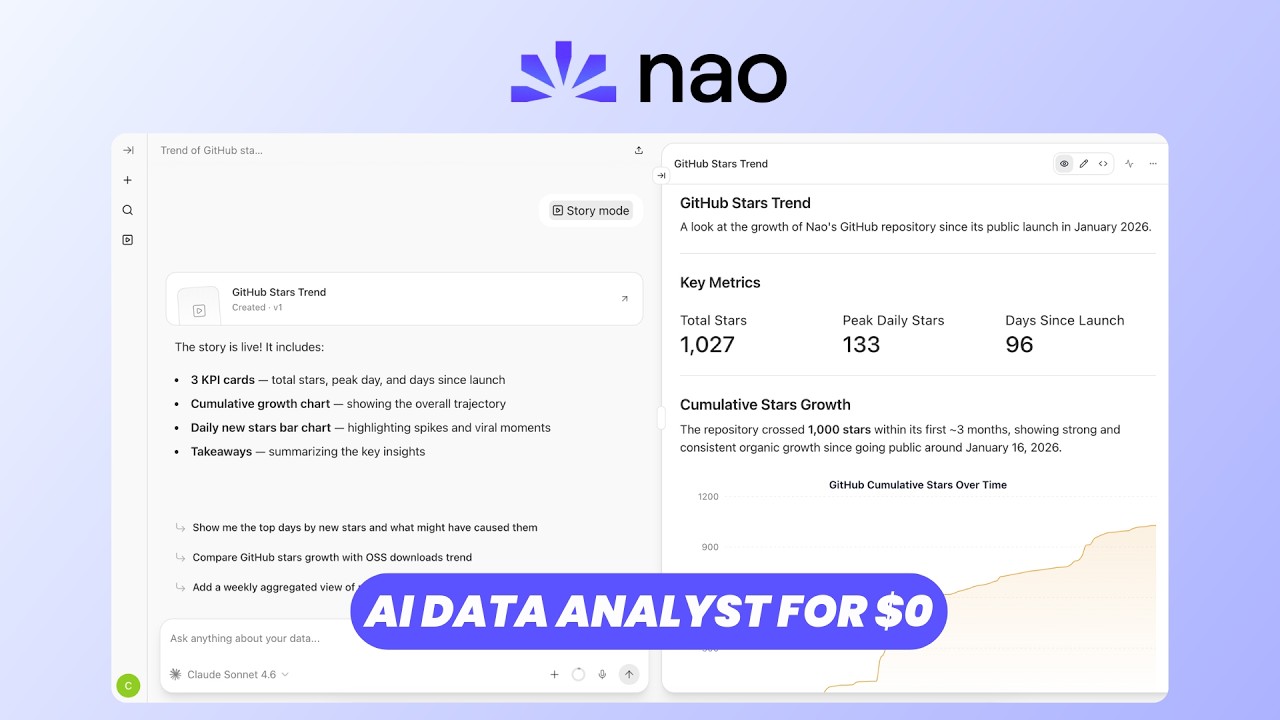
🧠 What Nao Is
Nao is a free, open-source AI data analyst built around a single idea: agent reliability comes from context engineering. Instead of bolting a chatbot onto your data warehouse and hoping for the best, Nao lets your data team build the agent's context like a file system — schemas, database models, metrics, documentation, and business rules — then unit-test its reliability before deploying a chat interface where anyone in the company can ask questions in plain English and get trustworthy answers. 0:00
Nao is warehouse-agnostic and model-agnostic: you bring your own LLM key and only pay for token consumption. Users can query it from Slack, Teams, WhatsApp, or the built-in chat UI. The self-hosted version is free and fully featured. There is also a managed cloud plan at $500/month with unlimited users, and an enterprise tier adding SSO, role-based security, and white-labeling. 0:40
🚀 Installation & Deployment
Nao can be self-hosted by following the official documentation, or deployed through a managed platform like Elestio, which handles installation, backups, updates, and ongoing maintenance. 1:23
The Elestio deployment flow is a straightforward wizard:
| Step | Action |
|---|---|
| 1 | Go to elest.io → Login → Deploy my first service |
| 2 | Search for "Nao", select it from the catalogue 1:30 |
| 3 | Pick cloud provider (AWS, GCP, Azure, etc.), region, and service plan (CPU/RAM) 1:33 |
| 4 | Name your service, adjust advanced config, choose support tier (first level is free) 1:44 |
| 5 | Click Create Service and wait for the installation email 1:55 |
Once deployed, you receive an email with links to the admin UI, instructions for setting your LLM key, confirmation that a demo dataset is included, and guidance for connecting your own data sources. 2:00
🔌 LLM Configuration
On first login, the chat interface prompts you to configure an LLM provider. Nao is model-agnostic: you can use OpenAI, Anthropic, any OpenAI-compatible endpoint, or your own self-hosted model. Results vary by model — some are faster, some cheaper, some more accurate on complex SQL — but the choice is entirely yours. 2:27
| Setting | What to enter |
|---|---|
| API Key | Your provider's API key (e.g. OpenAI, Anthropic, or local endpoint) |
| Model | Defaults to GPT-4o ("GPT 5.5" at time of recording — now GPT-4.1 / 5.x). Override with any model name your provider supports. 3:10 |
After saving the LLM config, you are dropped into the main chat interface, ready to query the included demo dataset. The setup email also includes example queries to get started quickly. 3:26
💬 Chat with Your Data
The chat interface is the primary user surface. You ask questions in plain English and Nao translates them into SQL, executes the query against your warehouse, and returns formatted results. Each query is transparent: you can expand the request to see the exact SQL it generated. 3:24
The demo walks through three queries of increasing complexity, showing how Nao adapts its output format to the query type:
| Query | Nao's response | Format |
|---|---|---|
| "How many customers do we have?" 3:42 | 100 customers | Single number + natural-language summary |
| "What are the top 5 customers by lifetime value?" 4:02 | Ranked table with name, ID, and LTV 4:17 | Structured table |
| "Show me the monthly order trend" 4:35 | Line chart + summary ("Monthly orders peaked in March at 35…") 4:41 | Chart + table + narrative |
You can also scope queries to specific tables by clicking the + button → "Database tables", selecting the relevant table (e.g. customers), and asking focused questions like "How many ordered only once?" — Nao returns 33 customers, with the generated SQL visible on expand. 5:11
📤 CSV / XLS Exports
For operational workflows, Nao can export query results to CSV or Excel. After running a query, ask "Can you export them into CSV?" and Nao generates a downloadable file. A copy and download button appear in the top-right of the response, so the analyst can grab the data and feed it into email campaigns, external tools, or reports. 5:57
⚡ Skills & Story Mode
Skills — reusable prompt templates
Nao implements skills as Markdown files stored on the server under agent/skills/. Each skill is a prompt template you create once and trigger from the chat UI with a single click. For example, a top-customers.md skill encodes the query logic for ranking customers by lifetime value — hit enter and it runs immediately. 6:14
To create a new skill: open the server's file browser (via Elestio's VS Code terminal or SSH), navigate to agent/skills/, create a new .md file with your prompt, and it becomes available in the chat UI's skill selector. 12:02
Story Mode — automated data narratives
Triggered with a prompt like "Show me data", Story Mode generates a rendered Markdown dashboard with key metrics, monthly performance charts, order status breakdowns, payment method distributions, and top customer rankings — all synthesized from the underlying data. 6:41
Stories are editable: click "Edit" to reorder sections, modify content manually, or switch to Markdown mode for full control. The killer feature is Live Mode: enable it and not only does the data refresh on a schedule — the narrative analysis regenerates too, so your dashboard stays current without manual rewrites. Stories can be shared with the entire project or specific team members, and come with analytics (views, downloads, forks, favorites, refreshes). 7:11
🔄 Feed Automations & MCP
Scheduled automations
Nao's Feed section lets you create automations that run on a schedule or via webhook. The demo shows a (tongue-in-cheek) monthly automation that finds the worst-performing sales employee and sends a warning — but the pattern generalizes to real use cases: weekly churn reports, daily anomaly detection, monthly KPI summaries. 8:43
| Trigger type | Use case |
|---|---|
| Schedule (daily/weekly/monthly) 8:52 | Recurring reports, KPI monitoring, data quality checks |
| Webhook | Event-driven: trigger analysis when new data lands, integrate with CI/CD |
MCP integration
Nao exposes an MCP (Model Context Protocol) endpoint, allowing external AI tools and agents to query your data through Nao's context layer. Enabling the MCP endpoint on your instance opens a channel for tools like Claude Desktop, Cursor, or custom agents to talk to your warehouse — with Nao's schemas, metrics, and rules serving as the trust boundary. Guides are provided for popular AI providers. 12:23
Automations can be connected to external tools (email, Slack) or MCP servers so that scheduled analyses trigger real actions — send a Slack alert when a metric crosses a threshold, email a weekly report to stakeholders, or feed data into another system. The Feed panel shows the history of all automation runs with their results. 9:31
👥 Team & Data Import
User management
By default, self-signup is disabled — and Nao recommends keeping it that way unless your instance is on a private network. To add team members, go to Settings → Organizations → Add Member, enter their email and name, generate a password, and assign a role (admin, user, or viewer). 10:20
Connecting your data
Data import and skill creation happen on the server side — not in the chat UI. Nao provides two paths for connecting your data: 11:03
| Path | Method | When to use |
|---|---|---|
| Option A | Import via local file | One-off data loads, CSV/Excel imports, prototyping |
| Option B | Connect your real warehouse | Production use — live connection to PostgreSQL, MySQL, BigQuery, Snowflake, etc. |
Both options require running commands on the server. Via Elestio, you access the server through the LS2 dashboard → Tools → VS Code, which provides a file browser and nested terminal. Navigate to the app directory, follow the documentation's import instructions, and your data becomes queryable through Nao's context layer. 11:23
Usage monitoring & white-labeling
Nao tracks detailed analytics of all messages — split by LLM provider, time period, and platform (web, Slack, Teams). The white-label option (enterprise only) lets you replace the logo, application name, and brand colors with your own. 12:40
✅ Key Takeaways
- Free and fully featured — the self-hosted version is free, you only pay for your LLM token consumption. The managed plan ($500/month) adds support, SSO, and white-labeling.
- Context engineering is the moat — Nao's schemas, DB models, metrics, docs, and rules form a file-system-like context layer that the agent reasons over. This is what makes answers trustworthy, not just plausible.
- Model and warehouse agnostic — bring your own LLM key (OpenAI, Anthropic, local models) and connect to any database. No vendor lock-in on either axis.
- Output format adapts to query intent — single numbers, tables, charts, and narrative summaries are chosen automatically based on what the question demands.
- Skills are Markdown files — create reusable prompt templates as
.mdfiles in theagent/skills/directory. No YAML config, no UI wizards — just a prompt in a file. - Story Mode + Live Mode = self-updating dashboards — generate rich Markdown dashboards from natural language, then enable Live Mode so both data and narrative analysis refresh on schedule.
- Automations close the loop — scheduled or webhook-triggered analyses can connect to email, Slack, or MCP tools, turning insights into actions without human intervention.
- MCP endpoint makes Nao a data layer for your AI stack — external tools and agents query your warehouse through Nao's context layer, inheriting the same schemas, metrics, and business rules that protect your chat users.
- Team support with role-based access — admin, user, and viewer roles. Self-signup is disabled by default for security; admins provision accounts manually.
- Deploy in minutes via Elestio — pick a cloud provider, choose resources, and let the platform handle installation, backups, updates, and maintenance.
🔗 Resources & Links
- 🌐 Nao homepage — product info, features, and self-hosting guide
- 📖 Nao documentation — setup, data import, skills, MCP, and API reference
- ☁️ Deploy Nao on Elestio — managed hosting with one-click deployment
- 📺 Original video — full walkthrough by Elestio / WawaSensei